Guides, Integrations, Telegram
How to connect your personal Telegram account to Warden9

Most "Telegram integrations" are bots: a bot has its own identity, can't read your DMs, and only sees chats it's been added to. Warden9's Telegram (Personal Account) integration is different — it logs into your own Telegram account over MTProto, the same way the official Telegram apps do. Your agent can then read your dialogs, message your contacts, and manage chats as you, with every call risk-classified and policy-checked first.
Because a personal login is more powerful than a bot token, Telegram is the one exception to Warden9's usual "just click Connect" flow: the first time anyone on your team connects a Telegram account, Warden9 walks you through registering a Telegram application too. It's a one-time step, folded into the same Connect wizard — not a separate setup page. It takes about two minutes.
Before you start
You'll need two things:
- A Warden9 workspace you can sign in to. If you don't have one yet, start free.
- A Telegram account and phone number — the one you want your agent to act as. If that account has two-step verification enabled, have that password ready too; you'll need it in a later step.
A word on what's actually happening here: a single Telegram application (an api_id + api_hash) authenticates every account that connects — you only register that application once per workspace. Each person's login session afterward is stored encrypted, per person. There is no shared account and no bot token.
Step 1 — Open Auth Providers and click Connect
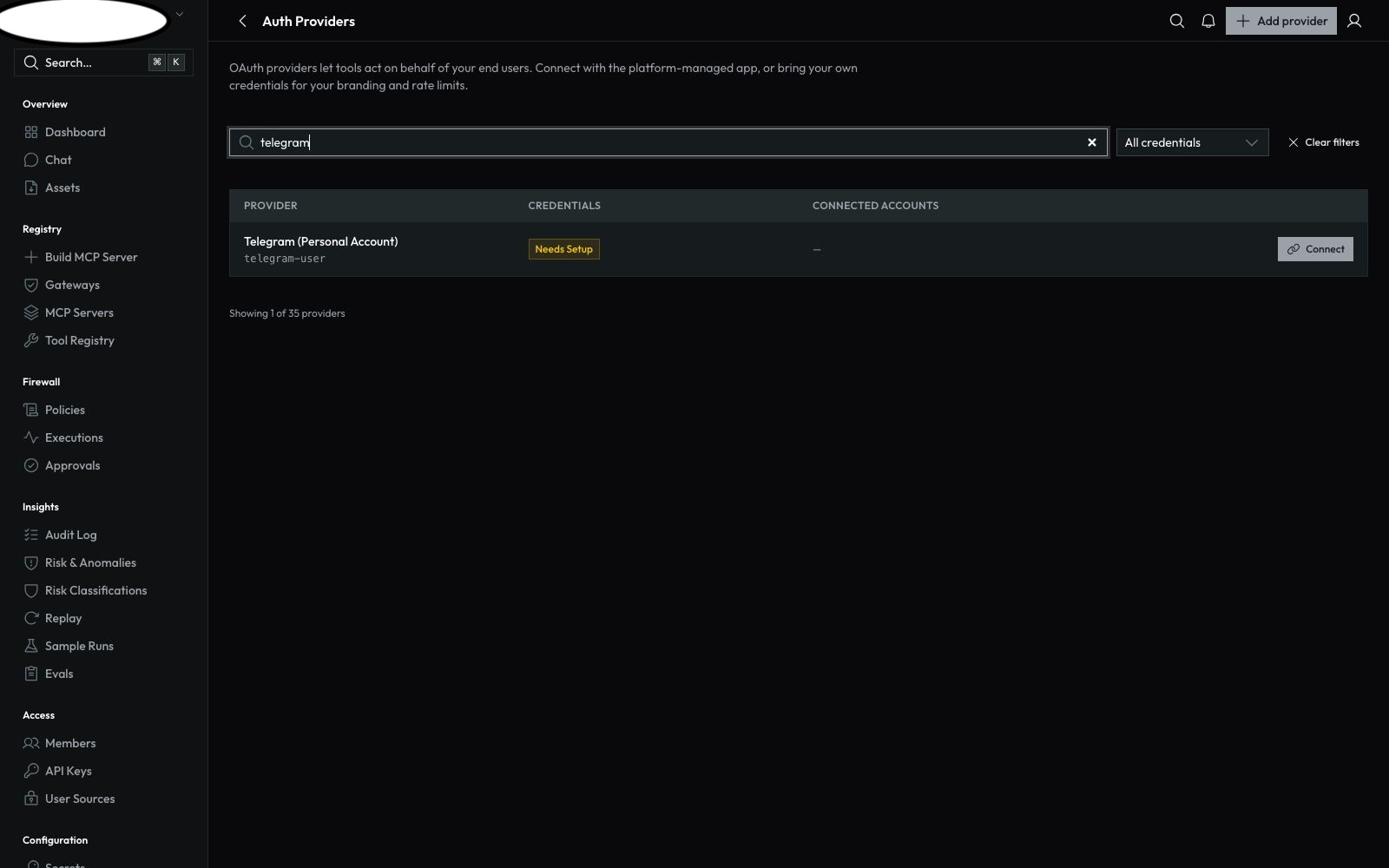
In the Warden9 dashboard, go to Auth Providers and search for telegram. You'll see Telegram (Personal Account) (telegram-user) marked Needs Setup — but unlike other providers in that state, the Connect button is already there. Click it.
Step 2 — Add your Telegram app (one-time setup)
Because nobody has connected a Telegram account on this workspace yet, Connect opens with a short first step: register a Telegram application at my.telegram.org/apps (any title and short name work), then paste its API ID and API Hash here. Click Continue.
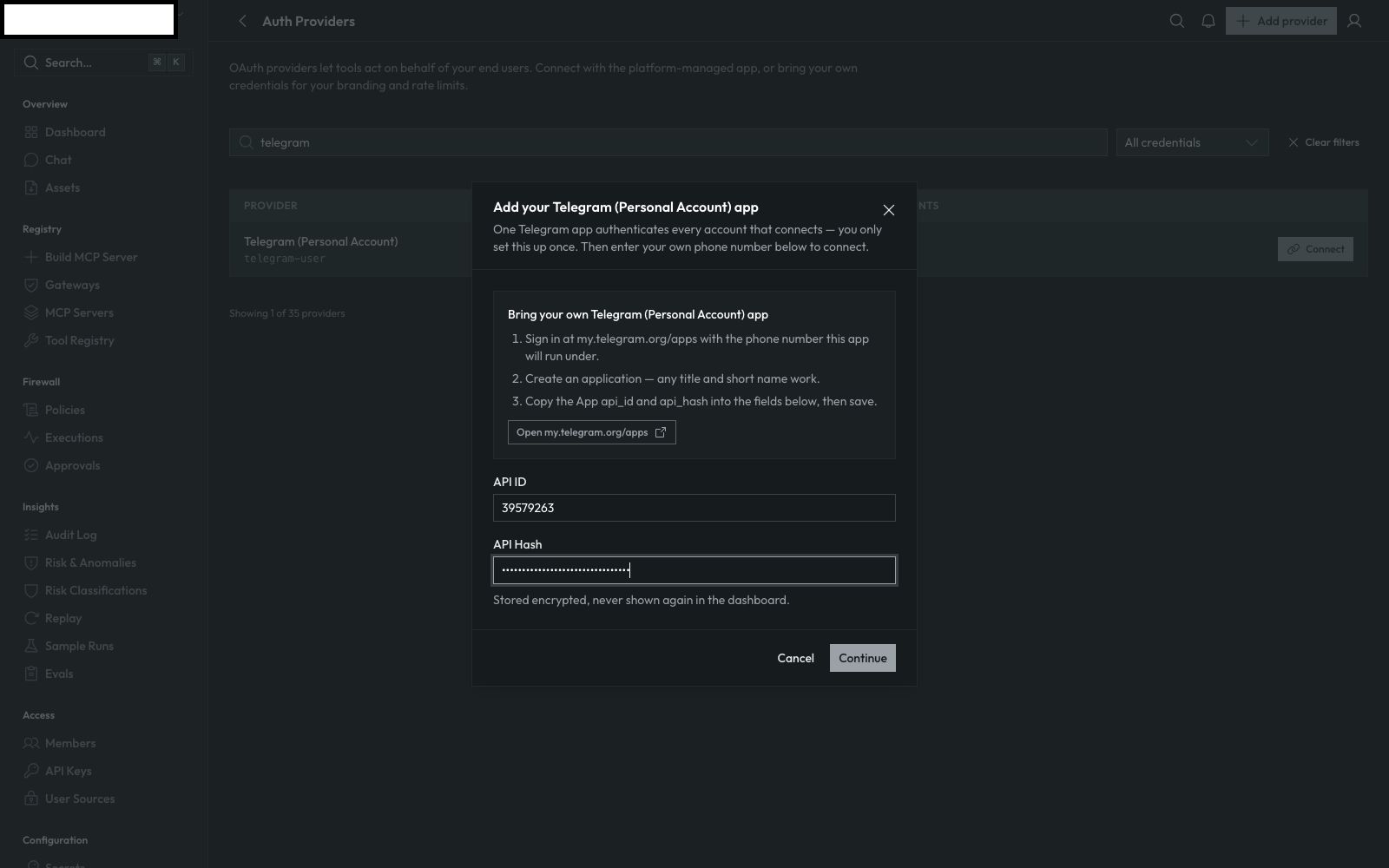
This step only appears once per workspace. Once an app is registered — or if your operator has already configured a platform-managed default — Connect skips straight to the phone step below for everyone else.
Step 3 — Enter your phone number
The wizard continues, in the same dialog, straight into the actual account login: enter the phone number in international format and click Send code.
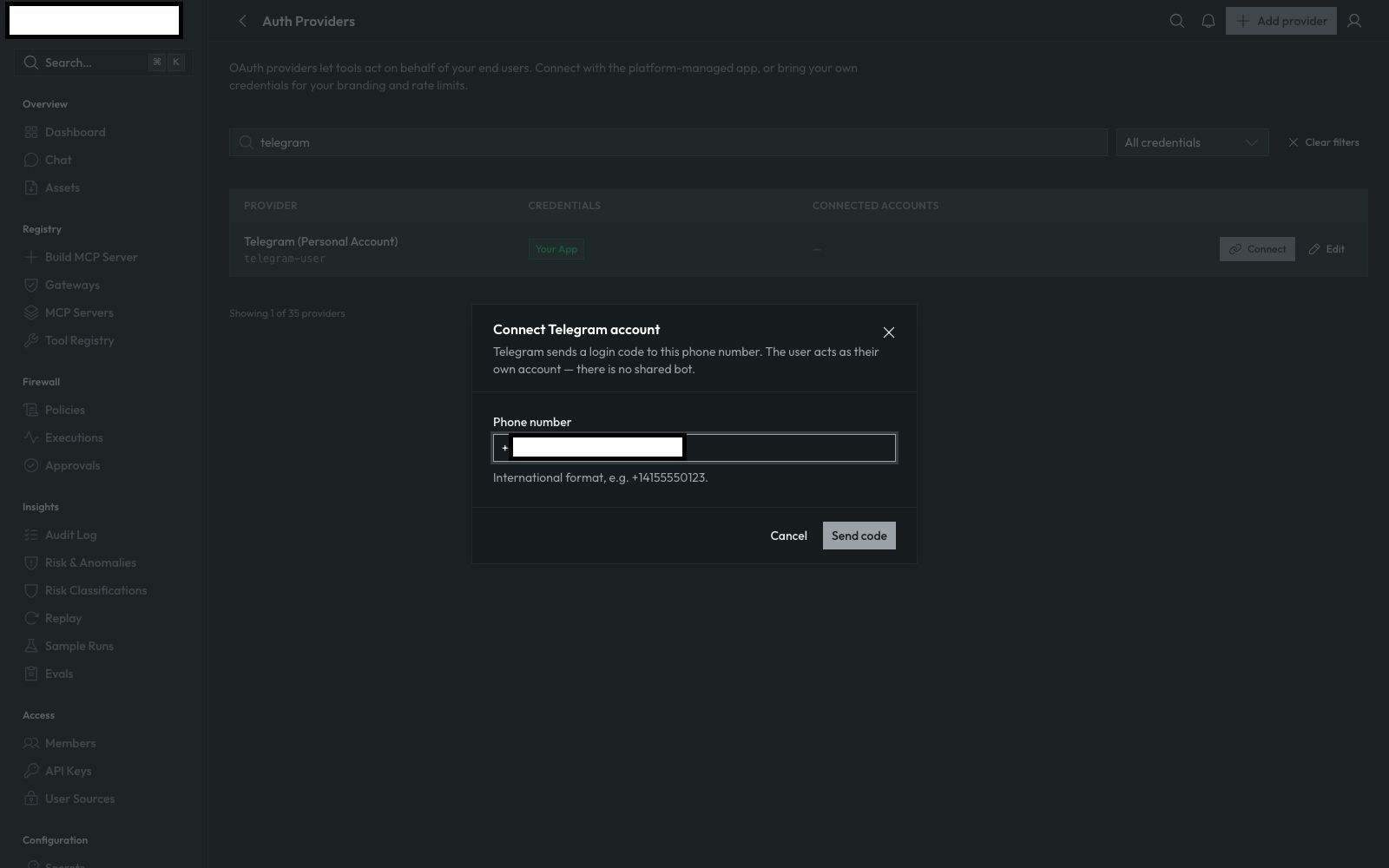
Telegram sends a login code to that account — it arrives as a message from the official Telegram service inside the app, not a text message.
Step 4 — Enter the login code (and two-step password, if set)
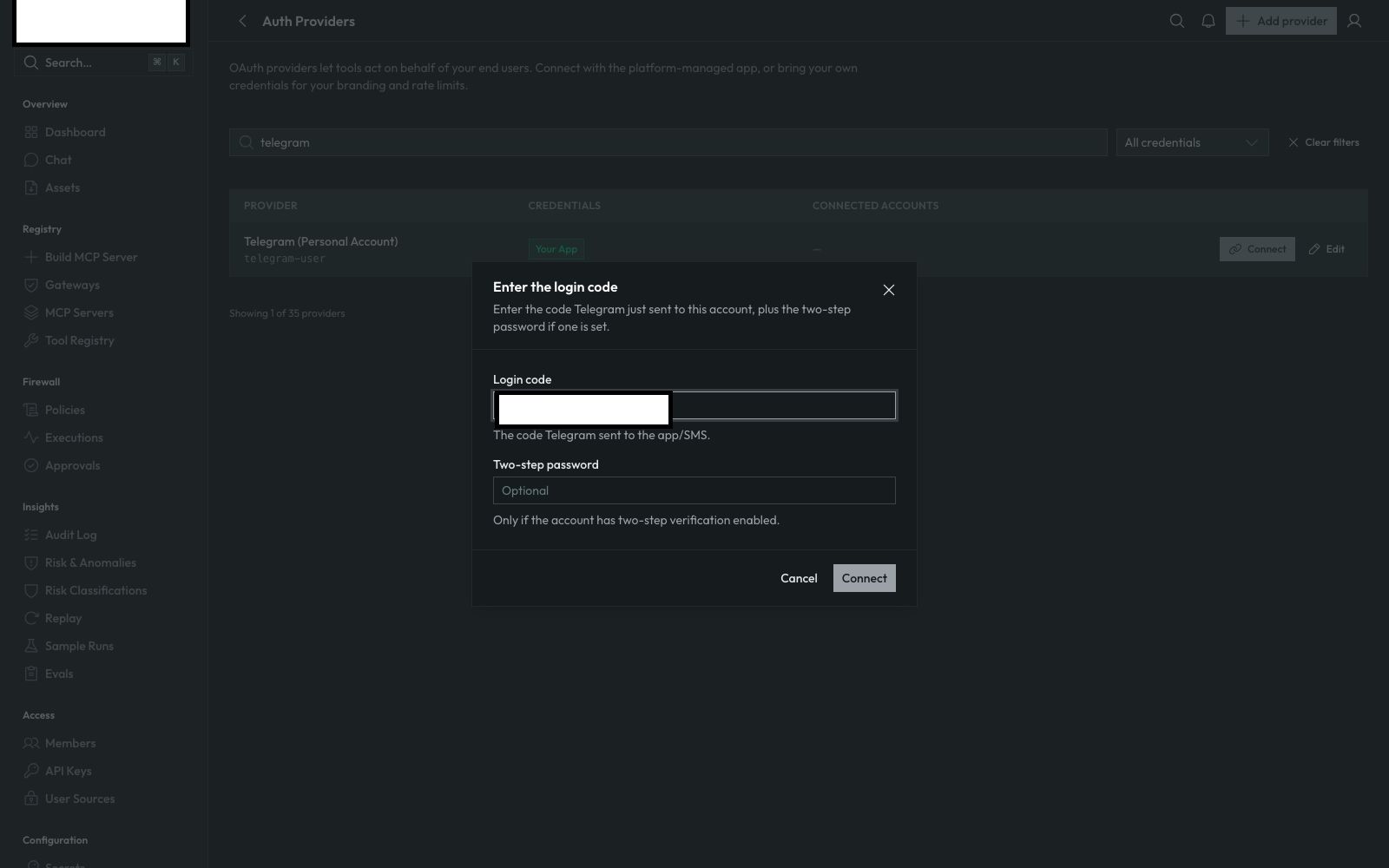
Enter the code Telegram just sent. If the account has two-step verification enabled, also enter its password in the Two-step password field — Warden9 tells you it's required if you leave it blank and the code alone isn't enough. Click Connect.
Step 5 — Confirm the connection
On success, the dialog closes and the Telegram row now shows Your App for credentials and the connected account with a Disconnect action, right inline — no separate "connections" page to go hunting for it.
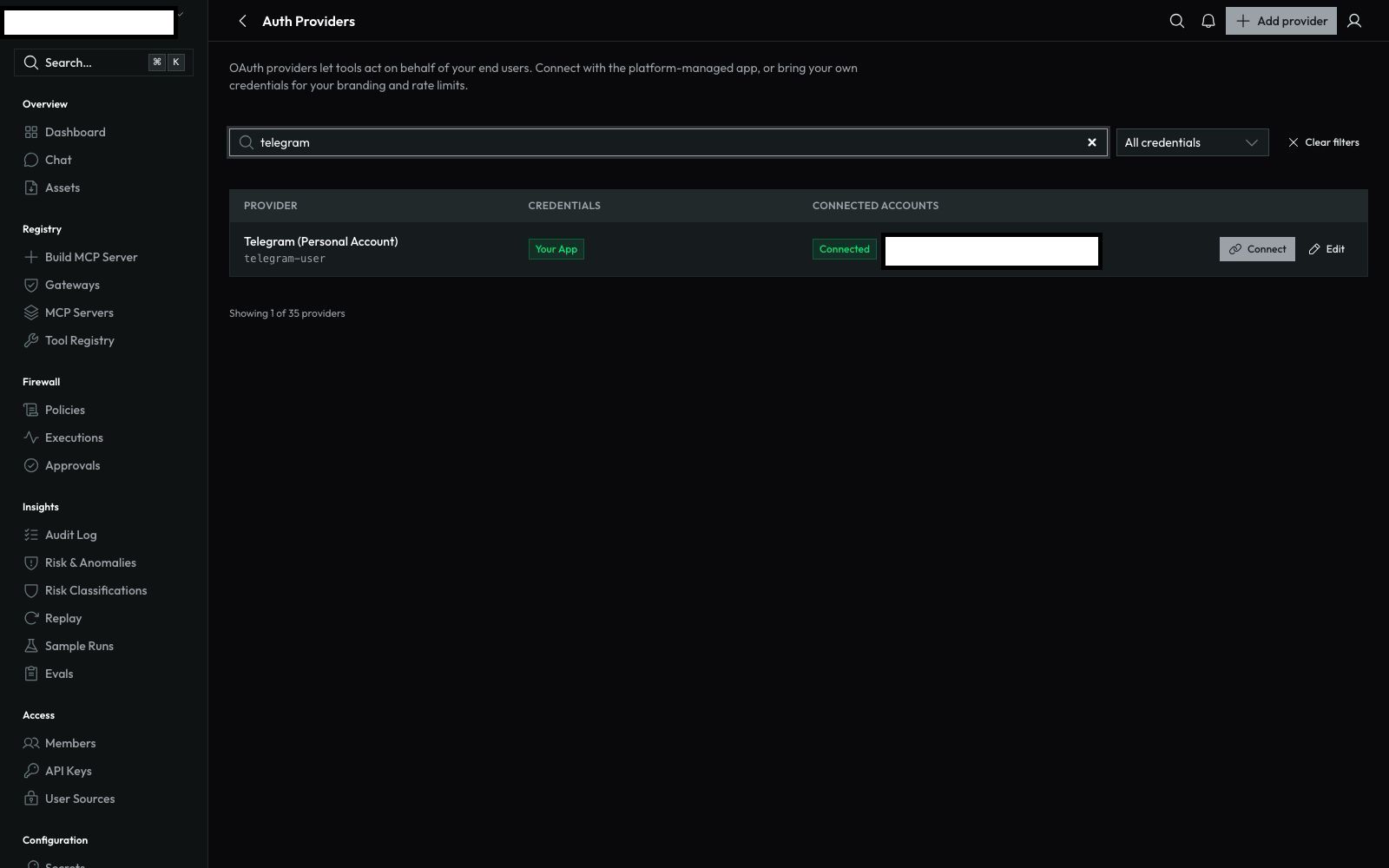
That's it — your Telegram account is connected.
Rotating credentials later
If you ever need to change the registered app's API ID or API Hash — for example, to rotate to a new Telegram application — click Edit next to the Telegram row. It reopens the same guided API ID / API Hash form, prefilled, without touching any already-connected accounts.
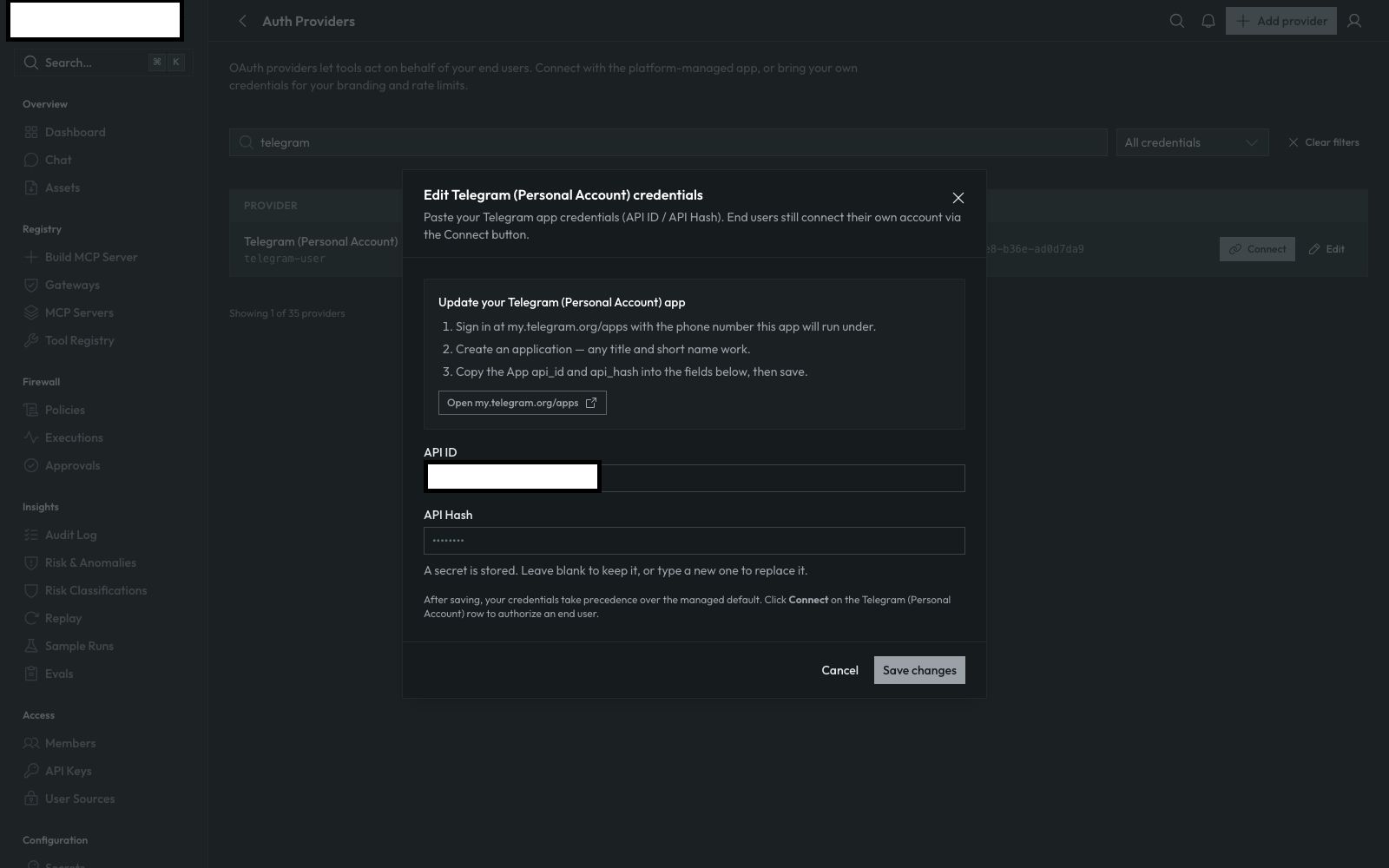
Expose the tools on a gateway
Connecting the account makes the identity available; a gateway is what actually publishes tools to an agent behind the policy firewall. Go to Gateways and click Create gateway.
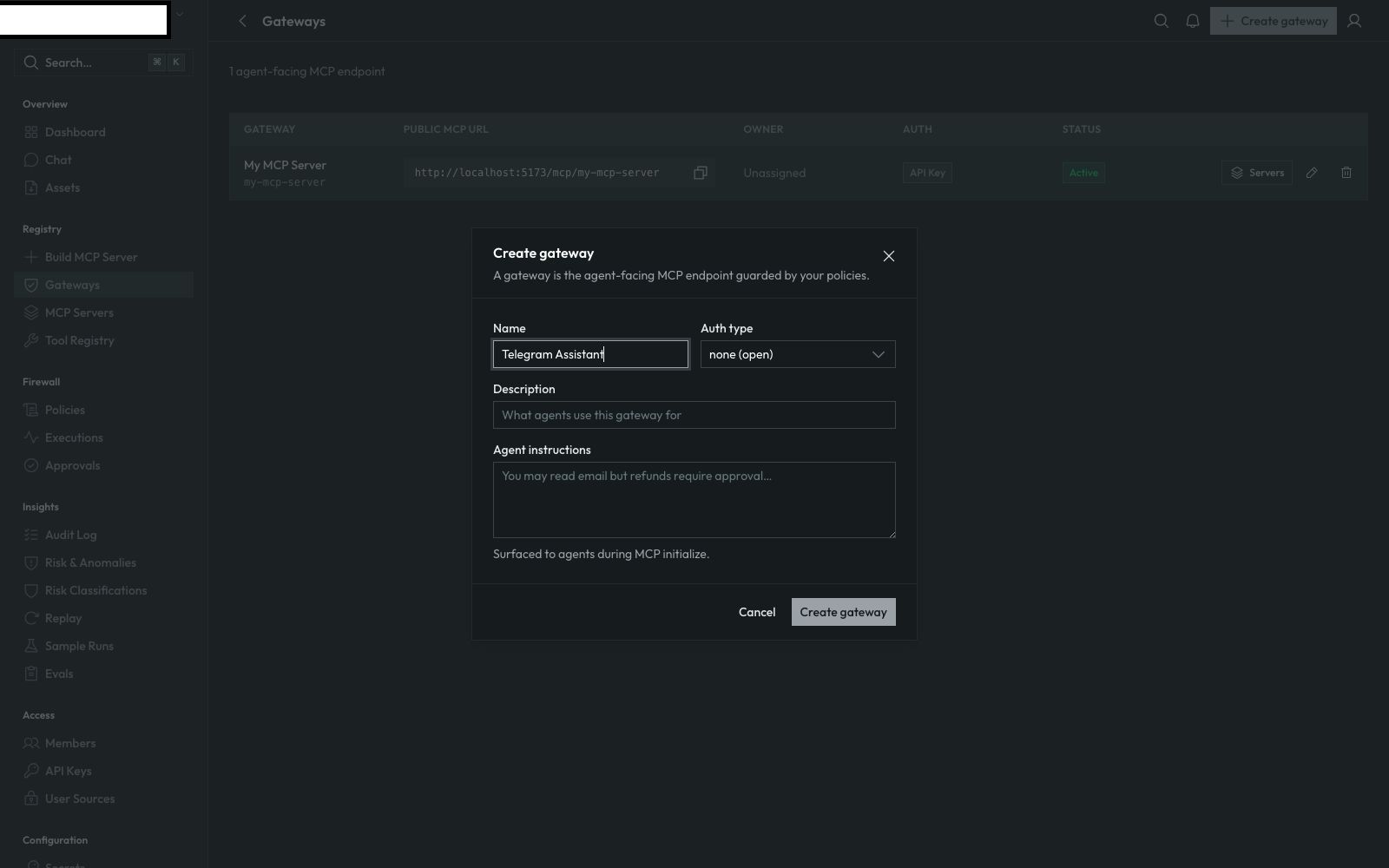
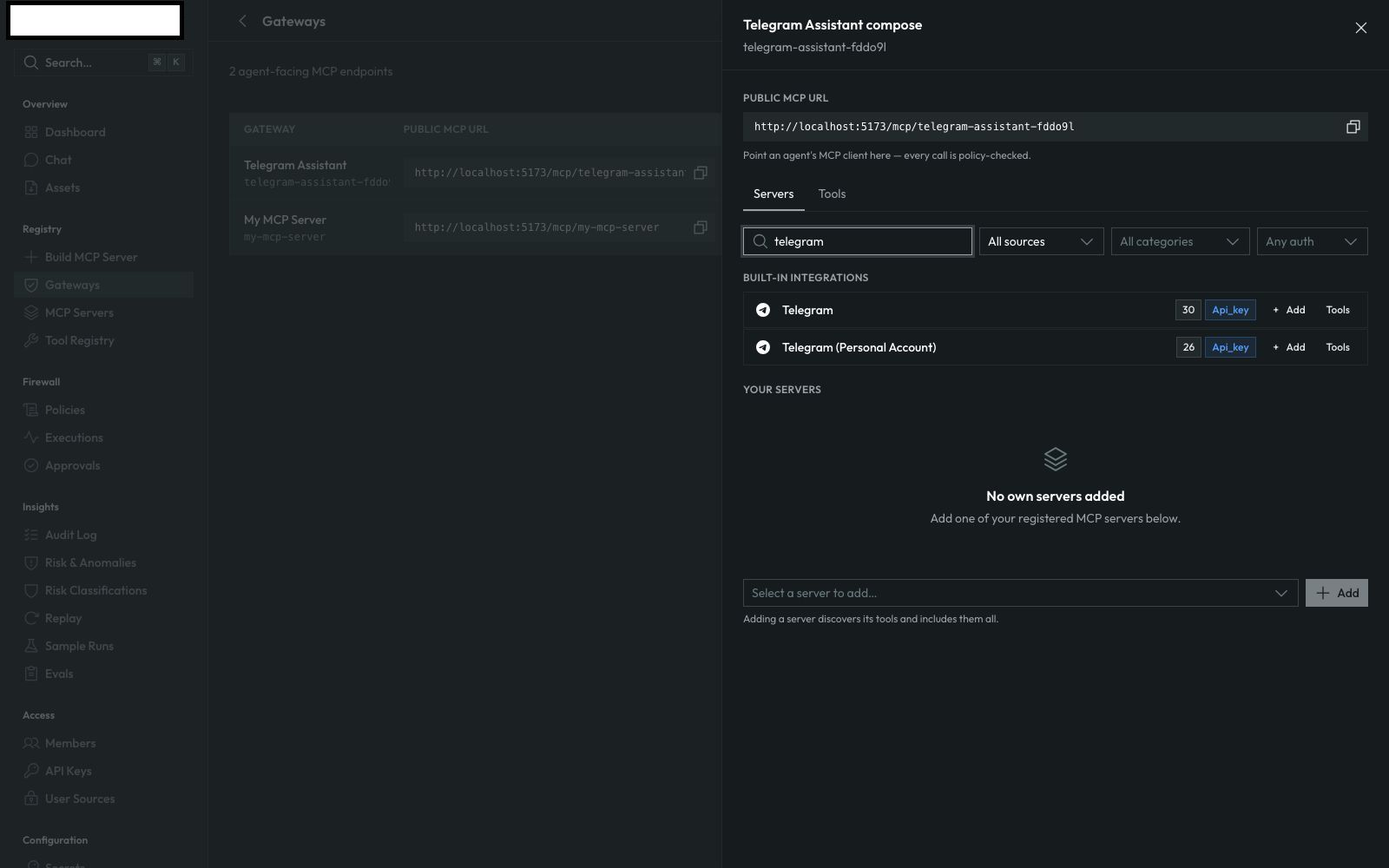
Give it a name. Open its composer and search the built-in integrations for telegram — you'll see two results: plain Telegram (the bot API) and Telegram (Personal Account) (26 tools, the one this guide connected). Click + Add on Telegram (Personal Account).
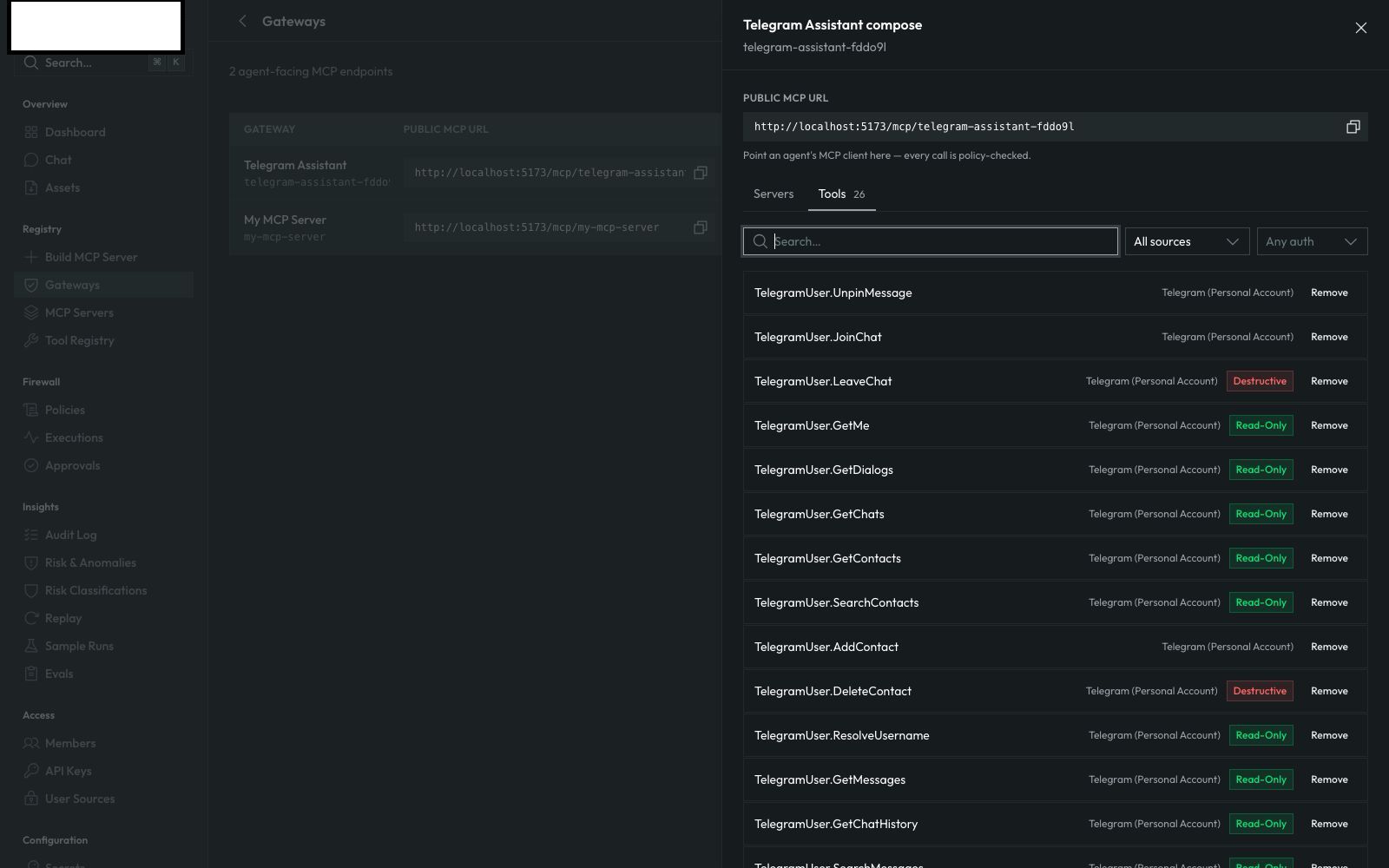
Open the Tools tab and you'll see all 26 TelegramUser.* tools, each already risk-classified — reads like GetDialogs and GetChatHistory are tagged read-only, while irreversible actions like LeaveChat and DeleteMessages are tagged destructive so your policies can require approval before they run. Sending or editing messages sits in between and can be gated the same way.
Point your agent at the gateway
Your agent's MCP client connects to the gateway's public URL. A tools/list call against the endpoint returns the 26 tools:
curl -s -X POST https://your-warden9-host/mcp/your-gateway-slug \
  -H 'content-type: application/json' \
  -d '{"jsonrpc":"2.0","id":1,"method":"tools/list","params":{}}'

# -> 26 tools: TelegramUser.GetMe, TelegramUser.GetDialogs,
#    TelegramUser.GetContacts, TelegramUser.SendMessage, ...
When the agent calls a tool, it passes the identity it's acting for. Warden9 resolves that person's encrypted Telegram session, runs the firewall pipeline, and — if the policy allows — executes the action as that account.
What happens to your credentials and session
- The registered app's API ID and API Hash are encrypted at rest. They're stored once per workspace and never written to logs or returned to the dashboard after saving.
- Your login session is encrypted, per person. There is no shared account and no bridge — each connected Telegram account's session is isolated to the person who connected it.
- The model never sees a credential. When an agent calls a Telegram tool, Warden9 uses the stored session at the moment of the call, inside the runtime. Nothing enters the prompt or the model's context.
- Every call is scoped and governed. Connecting an account never means unchecked access — each tool call still runs through Warden9's risk classifier and policy pipeline.
Disconnecting
Click Disconnect next to your account on the Telegram row in Auth Providers. The stored session is deleted immediately and tools acting as that account stop working. This only removes your personal login — it doesn't touch the registered app's API ID/Hash, so other people on the workspace can still connect their own accounts.
Frequently asked questions
Is this a bot?
No. It logs into your own Telegram account over MTProto, the same protocol the official Telegram apps use. It can read and act on anything your account can see — which is exactly why every call still runs through Warden9's policy firewall.
Do I need to register a Telegram app every time someone connects?
No. One registered app (API ID + API Hash) authenticates every account that connects on your workspace. You (or your operator) only do that setup once; everyone else's Connect click skips straight to the phone number step.
What if the account has two-step verification enabled?
Enter the code first, then Warden9 will tell you a two-step password is required. Fill in the Two-step password field with that account's password and click Connect again.
Does the agent ever see my phone number or login session?
Never. The session is held encrypted by the Warden9 runtime and used only to authorize outbound Telegram requests at call time. The model only ever asks the runtime to make a call — it never handles the credential.
Can multiple people connect their own Telegram accounts on the same workspace?
Yes. Each person's session is stored and encrypted independently, keyed to their own identity — connecting a second account doesn't touch the first.
Want to see governed agents acting on Telegram in production? Start free or
book a demo.